


Webflow Editor lets your team update content right on the page - no devs, no guesswork, no stress. It’s built for marketers who want control without complexity.
Edit text, swap images, publish - all in a few clicks. No training needed. No “oops” moments. Just clean, fast updates that keep your site sharp.
At Creative Corner Studio, we build exclusively on Webflow, and a huge reason is how much it empowers our clients.
This guide will walk you through everything you need to know about the Webflow Editor, from core features to practical tips that make you a content-updating pro.
What Is the Webflow Editor?
The Webflow Editor is designed for people who don’t want to chase developers every time they need a headline tweak or a new blog post.
It gives you direct access to your site’s content in a clean, visual interface. Log in, click the page you want, and edit text or swap images right there - no coding, no complicated menus.
Think of it this way:
- Webflow Designer: the architect’s blueprint and construction site - building foundations, walls, and electrical systems.
- Webflow Editor: the interior decorator - moving furniture (content), hanging art (images), and repainting walls (text) without worrying about the structure.
Benefits for marketing teams:
- Faster updates - publish campaigns, announcements, or product changes in minutes.
- Content accuracy - fix typos or outdated info immediately.
- Team-friendly workflow - multiple editors without conflicts.
- SEO-ready editing - titles, meta descriptions, alt text, and headings editable without a developer.
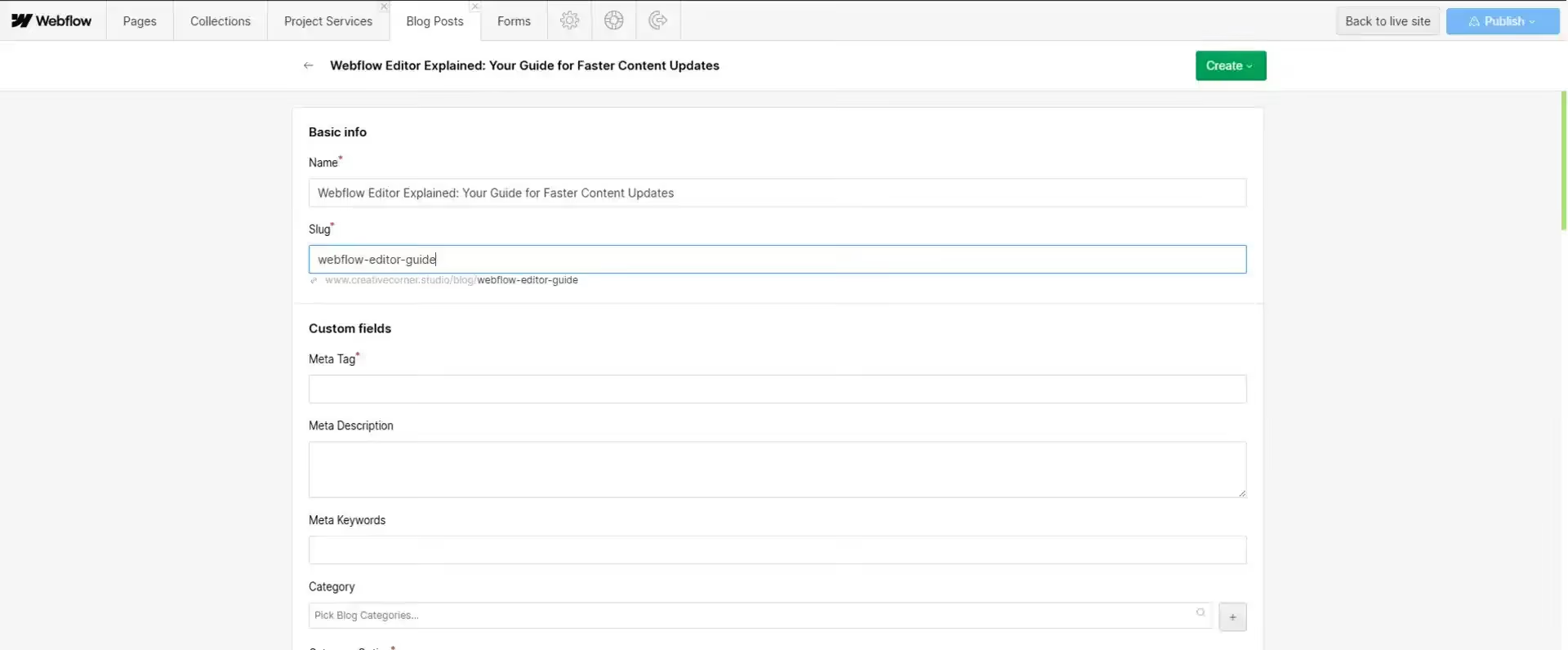
It’s simple, visual, and designed for teams that need speed while keeping design intact.
How Do You Use the Webflow Editor?
Even if you’ve never touched a website backend, using the Editor is straightforward:
- Log in and navigate to the page you want to update.
- Click any editable element - text blocks, images, buttons - and start typing or swapping files. Changes appear instantly as they will on the live site.
Key steps for marketing teams:
- Edit content visually - see changes in real time without opening Designer.
- Manage media easily - drag and drop images or replace videos in seconds.
- Publish instantly - updates go live immediately, allowing your team to experiment and optimize content more effectively, as described in our guide to Webflow A/B testing.
- Maintain SEO - update page titles, meta descriptions, alt text, and headings directly within the editor.
How Do You Access Webflow Editor?
To access the Webflow Editor, simply add /?edit to the end of your website URL in your browser.
Example: yourwebsite.com/?edit
You’ll be asked to log in with your username and password.
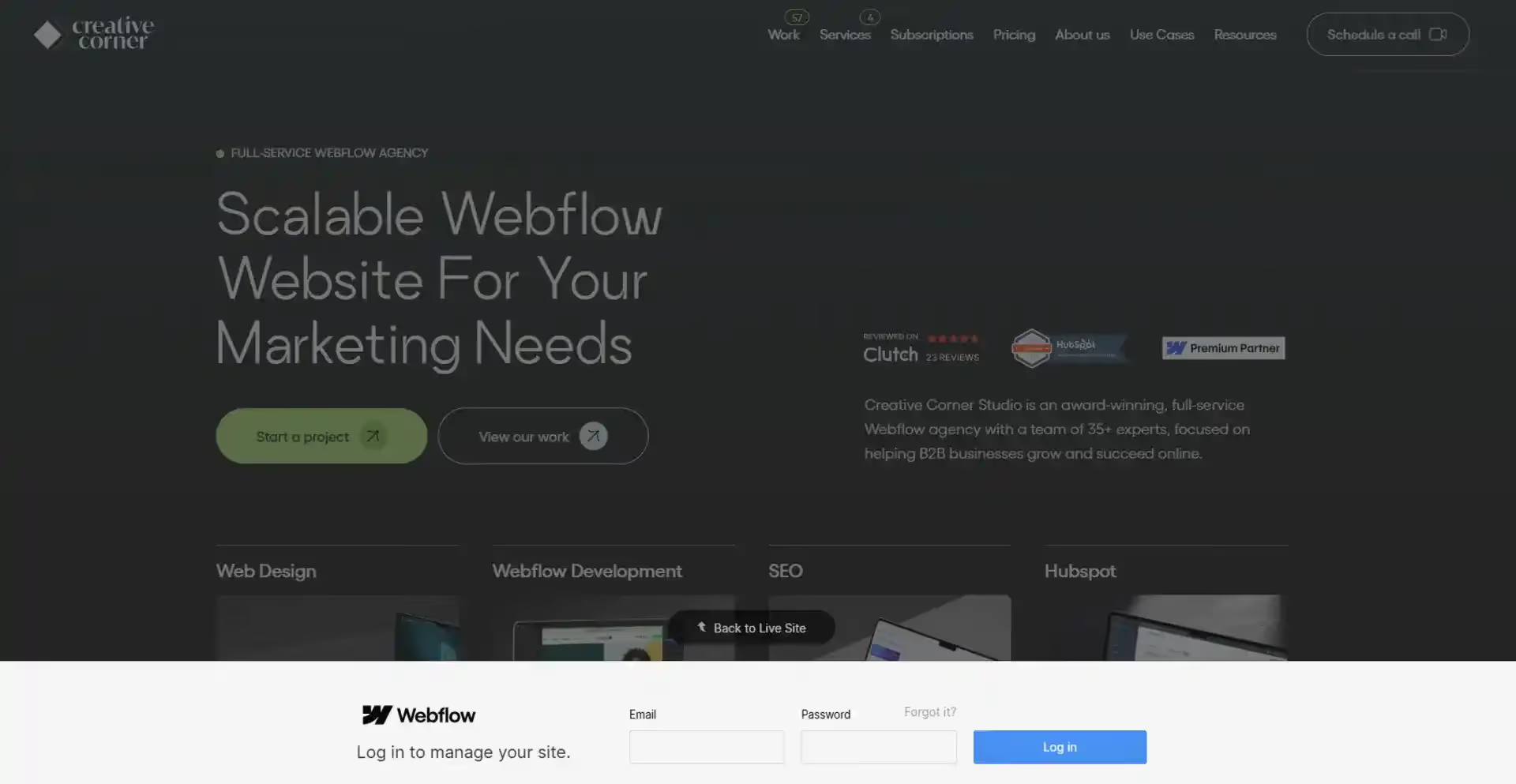
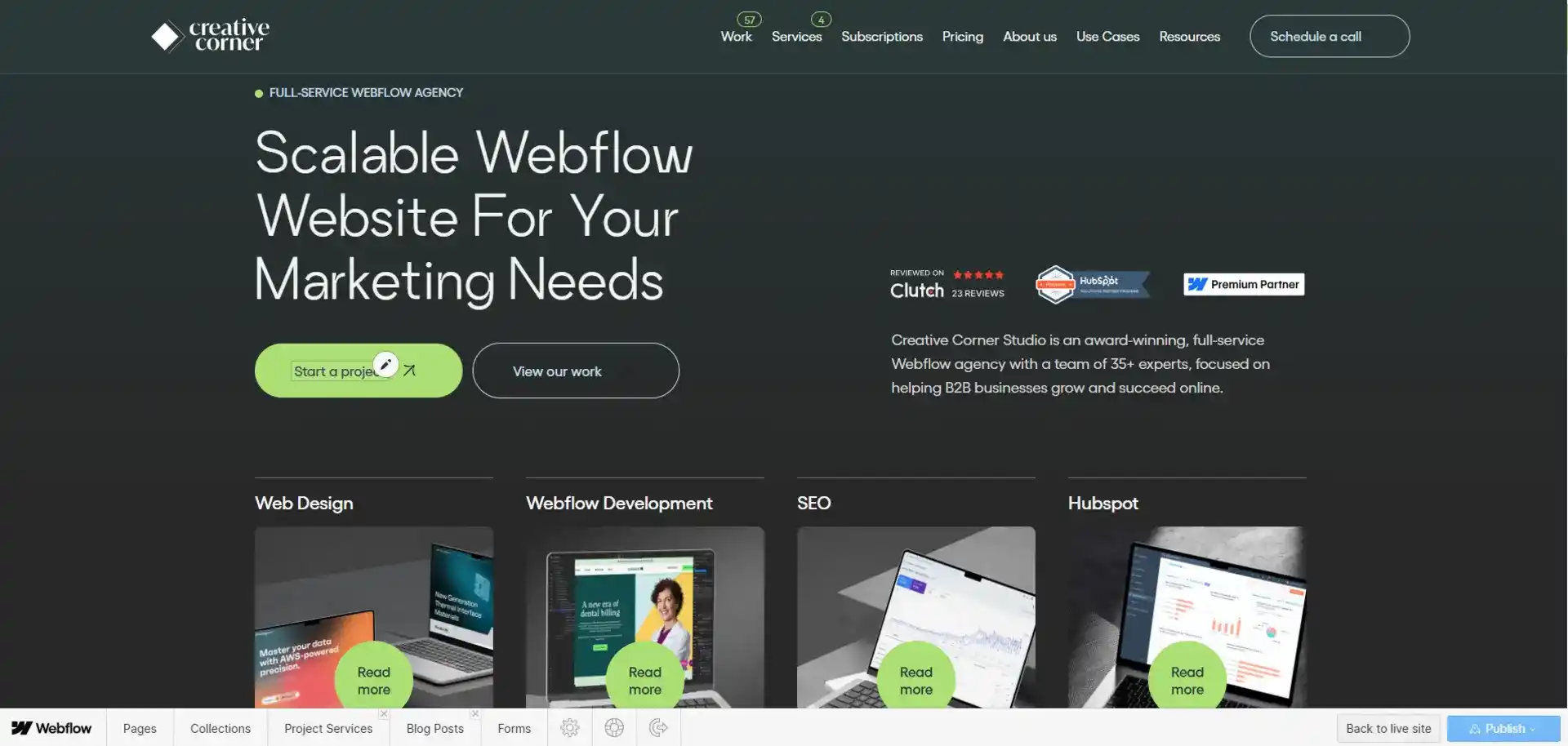
When you visit the site again later, look for the “Edit site” button in the bottom-right corner, click it to enter Editor mode.
Webflow Editor Tips and Tricks for Marketing Teams
Even though the Editor is intuitive, these tips save time and reduce mistakes:
- Inline editing - Click directly on headings, paragraphs, or buttons for visual updates.
- Use the Navigator - Easily select stacked elements without moving the wrong one.
- Preview before publishing - Check desktop, tablet, and mobile views in Editor mode.
- Bulk updates with CMS Collections - Edit multiple blog posts, products, or pages at once.
- SEO fields at your fingertips - Add alt text and meta info directly while editing.
- Collaborate with confidence - Multiple team members can edit simultaneously with version control.

You don’t need to click through menus for every change. Webflow Editor has keyboard shortcuts for actions like saving your work, undoing or redoing edits, and moving between CMS items. Learning just a few of these shortcuts can save your team minutes or even hours each week, making content updates quicker and easier.
Webflow Editor vs Other CMS Platforms
Marketing teams often ask why Webflow Editor is worth using over WordPress, Squarespace, or Wix. Here’s the breakdown:
- WordPress: Extremely powerful, but the editing experience depends heavily on the page builder.
Gutenberg alone offers almost no visual editing, while Elementor or Brizy give beautiful drag-and-drop - until a non-designer starts moving sections and ruining responsiveness. Clients break designs daily in the real world.
- Shopify: The theme editor in Online Store 2.0 is much more locked down than older versions, and section-based editing with apps keeps things relatively safe.
However, it still feels more code-like and less intuitive than Webflow's Editor, especially for non-e-commerce content (blogs, landing pages, etc.). - Squarespace: Very client-friendly and difficult to break. The editing experience is clean and visual, but designers have far less control over advanced animations, interactions, and custom code compared to Webflow.
- Wix: Similar to Squarespace - great drag-and-drop editor, safe for clients, but significantly limited in design flexibility, performance, and clean code output.
- Headless CMS (Contentful, Sanity, etc.): These offer the ultimate design lock because there is no front-end editor at all. Content editors work in a separate studio interface, and the site itself never gets touched. While this is 100% safe, it sacrifices the intuitive, on-site visual editing experience that clients love about Webflow.
Bottom Line
Most platforms force you to choose between total freedom (and frequent breakage) or heavy restrictions that limit design possibilities.
Webflow gives you both: complete creative freedom for the designer and safe, simple editing for everyone else.
At Creative Corner Studio, we see firsthand how empowering it is for clients to manage their own content without constant developer involvement.
For marketers who want speed, accuracy, and control, the Webflow Editor is a game-changer.
If you’re looking to get more out of Webflow, whether through a new build, migration, SEO optimization, or advanced integrations, our Webflow experts can help you scale with confidence.


.avif)
